Tag: Microsoft Teams

Teams Meeting Updates rolling out January – March 2022

A number of updates are being rolled out by Microsoft to enhance and improve functionality across Microsoft 365 and Teams.

In this post we’ll look at the following:

  • Including Content from Camera
  • Moderated Q&A
  • Polls
  • Raise Hands – numbering.


Microsoft Teams – Include Content from Camera

You will soon be able to deliver content from a second camera attached to the device that is joined to a meeting – so if, for example, you want to share a diagram or view of a specimen while giving a lecture or seminar, it will be possible to share content from a camera.  To do this go to the share option in the Teams meeting and choose “Content from Camera”.
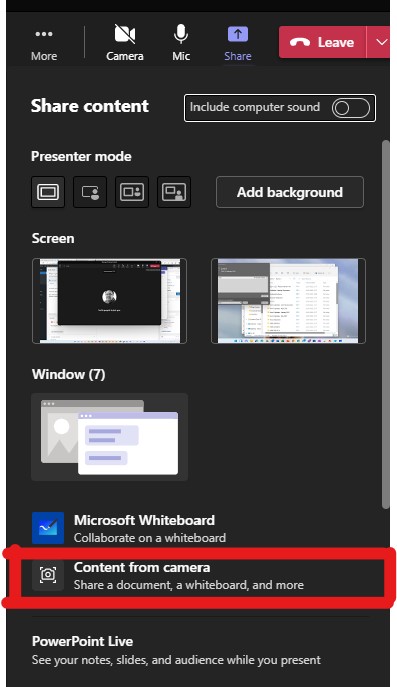
Screenshot shoing the Share menu and highlighting the content from caemra option


Moderated Q and A in Teams meetings

You can now add a Q and A app to your meeting to provide a moderated Q and A experience, like that provided in Live Events.  By using this Q and A app you can control and moderate or vet questions before making them publicly visible to the whole audience.  All those with the presenter role in the meeting have the ability to moderate questions.  This feature only works in direct invite meetings at the present time and not in channel meetings.


To add the Q and A app to your meeting, go to the calendar in Teams and fin the meeting entry before it starts.  Click on the +

Screenshot shoing how to add an app to a teams meeting


Then enter q in the search box or find the Q&A app in the list of apps …
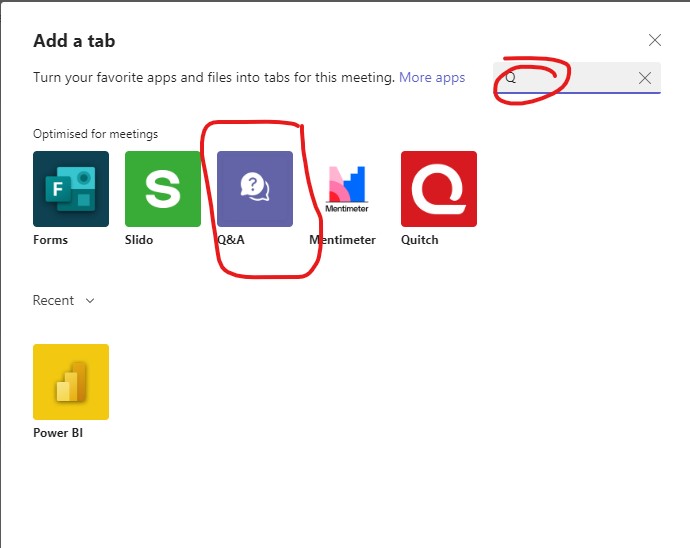
 

Screenshot showing how to find hte Q&A app


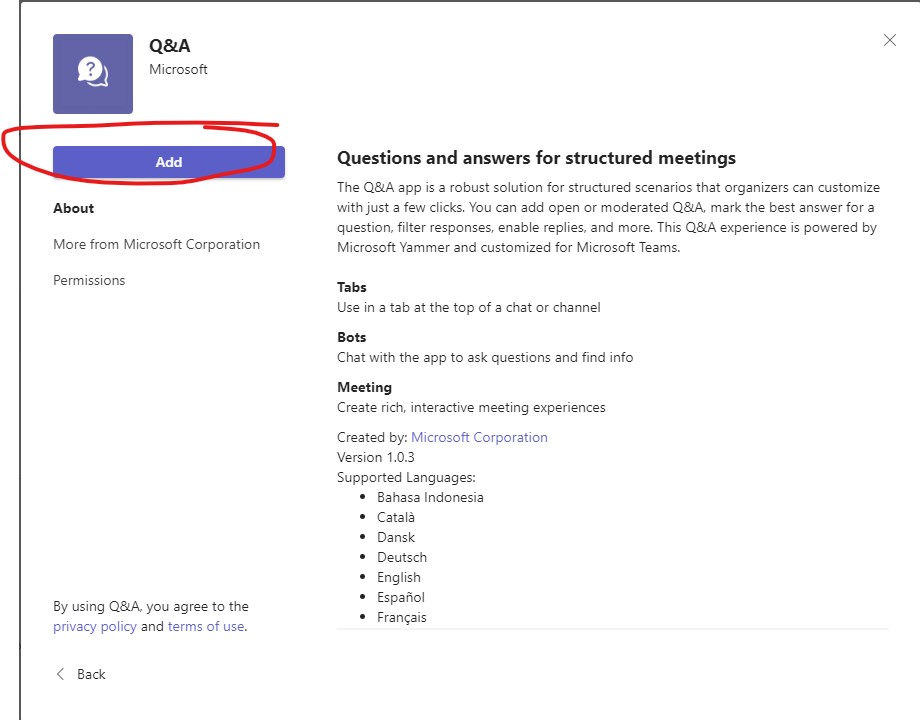
Select the Q&A app and choose Add …


Screenshot showing how to add the Q&A app


Select the option for moderated questions (NOTE that you cannot turn this off later – once it is on it stays on for the meeting) then click save …
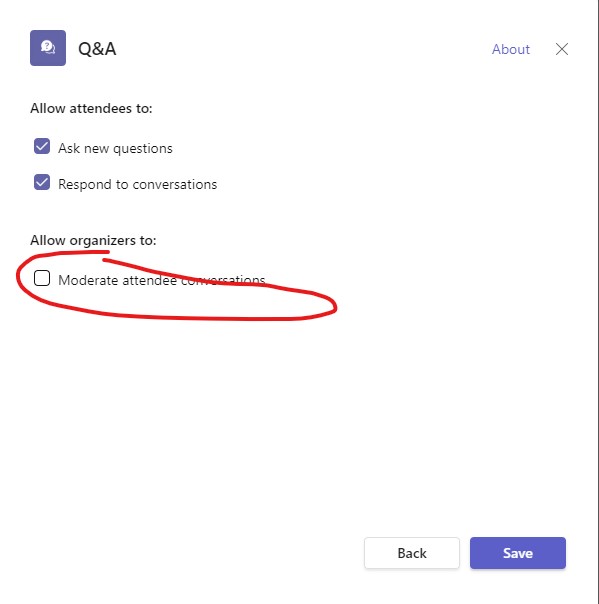
 

Screenshot shoing how to moderate the Q&A function


The app then adds an additional “tab” to your meeting from where you can see the questions including htose which have been published and dismissed.  You can also change some settings to stop further questions – this may be useful after your meeting finishes.
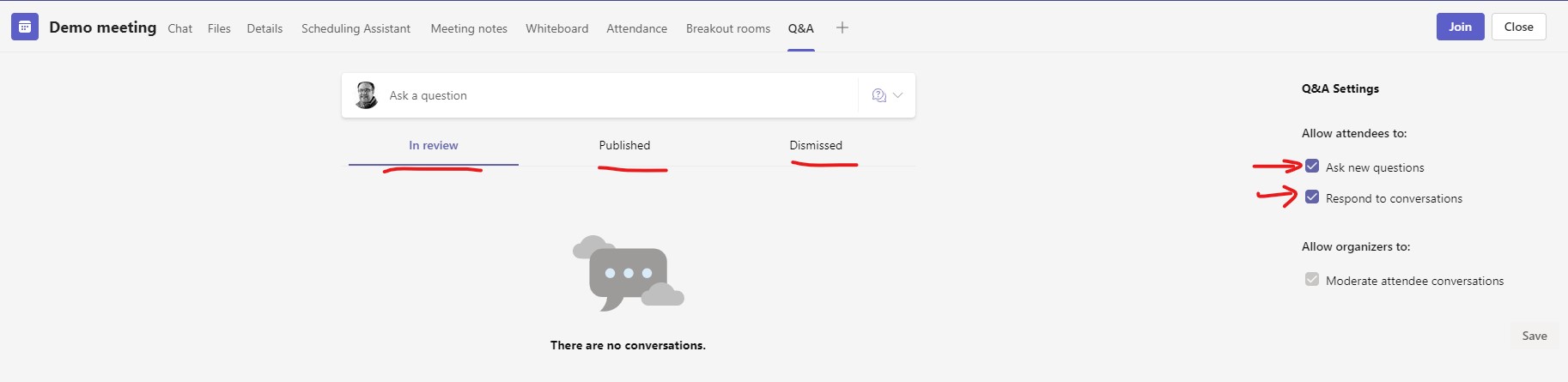
 

Screenshot showing the Q&A app within the team meeting


Adding Polls to Team Meetings

You can now use Forms to add Polling options to Teams meetings.  For channel based meetings this only delivers basic multiple choice polls, but for direct invite teams meetings you can deliver multiple choice polls, quizes and word cloud polls.

  • A Poll is just a question and a series of answers (where there may be a single choice or multiple answer option).
  • Quizzes – like a poll but you can set an option as the correct answer – great for offering self marking polls to assess progress in a lecture or course.
  • Word Cloud polls – us a text entry answer and then deliver the words as a word cloud with the most popular answers creating larger words in the resulting cloud.

To add a poll do the following:

Click the + sign in your teams meeting entry (just like above).  Then search for and choose Forms (may also appear as Polls soon!)
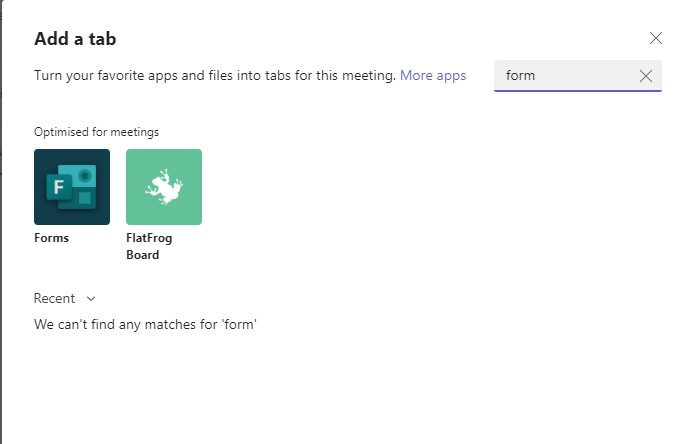
Screenshot showing how to add polls to a teams meeting


Then click on Save to add the forms app to the meeting.
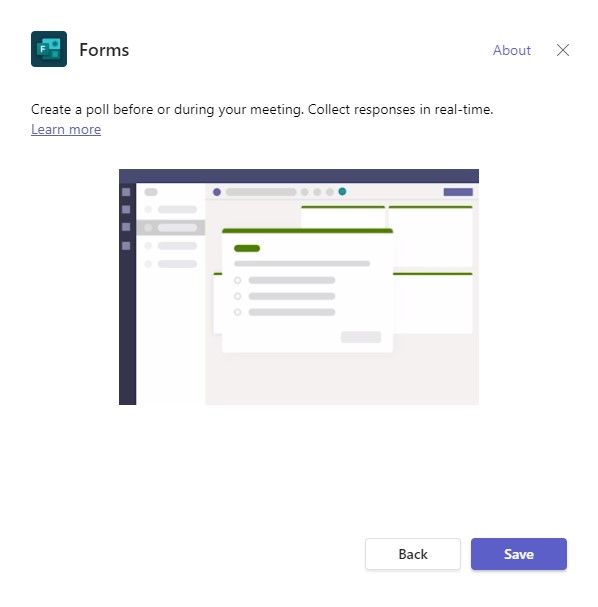
 

Screenshot showing how to save polls as an app into Teams meetings


Once added you can choose to create a new poll …

 

Screenshot showing how to create new poll


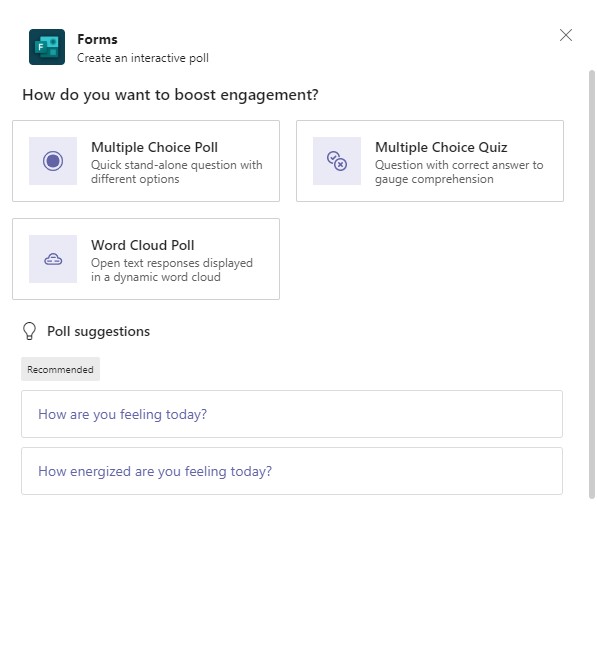
Then choose your poll type …


Screenshot showing choice of poll type


Create your poll and add additional options as needed.  Remember to set the anonymity options and results options as you need.
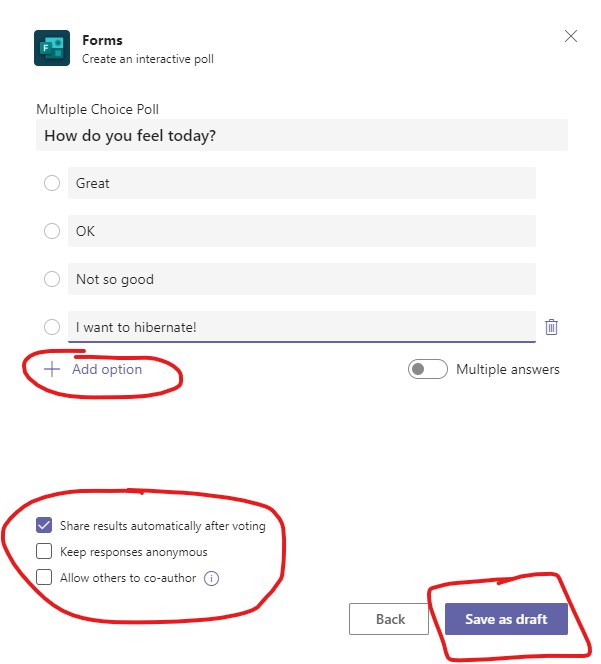
 

Screenshot showing how to create a poll question with multiple answers


Once saved as a draft, you can choose to Launch the poll into your meeting, edit it further or delete it.
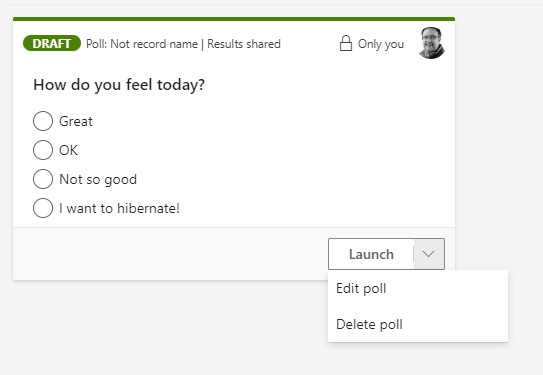
 

Screenshot shoing how to launch, edit or delete a poll


Once you have launched a poll you will be able to close it so no more responses are collected, see the results or delete it.


Raise Hands – what order did they go up?


In large meetings with lots of hand raising it can be difficult to work out who is next to speak or have input to the meeting.  Now when your meeting colleagues use the “Raise your hand” feature Teams will provide a visual indication of the order in which the attendees raised their hands, allowing you to ensure that you don’t miss people out when it is their turn!
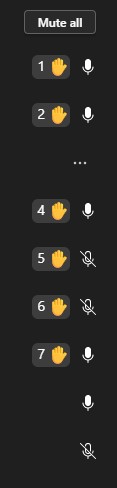

 

Raise hands - numbered view

The New Whiteboard Experience

The New Whiteboard is available NOW in Teams, web browser and Android app.


Updated versions for the Windows app and for iOS devices are expected in late October.


You can find out about all the new features on this technical community post from Microsoft …


Welcome to the new Whiteboard! – Microsoft Tech Community


New or updated features include the new Sticky Notes and Grids, New templates for Whiteboards, Reactions, and easier “snap to” functions.

Microsoft Teams – Breakout Room Enhancements

Microsoft have released a number of Breakout Room enhancements into Public Preview in Microsoft Teams.


To use these features in advance of General Availability, you will need to enable the Public Preview mode (see this blog post on how to do this).


Pre-Meeting Breakout Room Configuration

You can now set up breakout rooms in advance of your meeting and, if you wish, pre-populate the attendees, either manually or automatically.


Creating Rooms

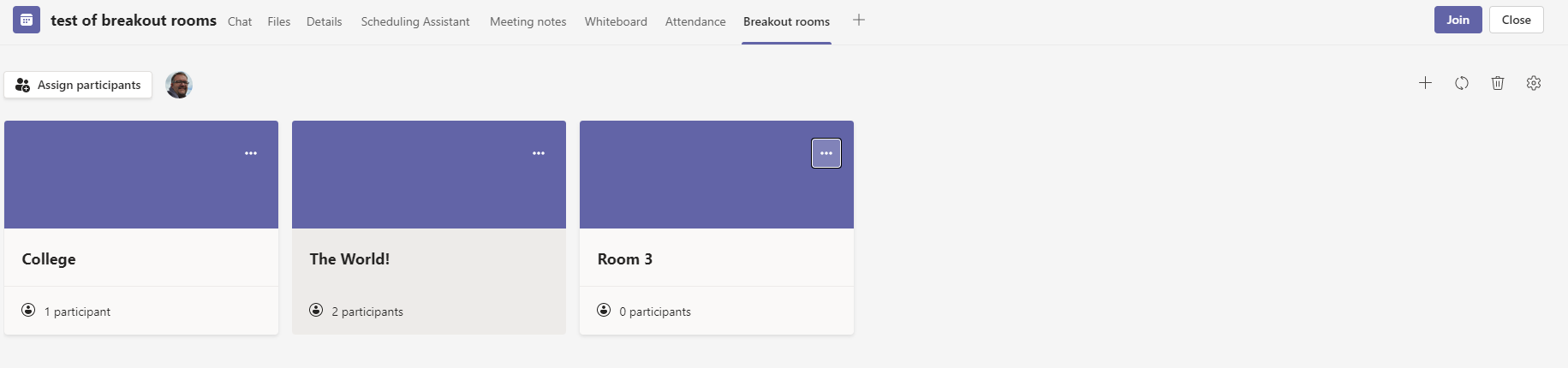
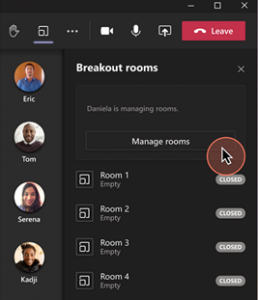
To do this, create your meeting and then double click on the meeting entry in the Teams calendar.  You’ll find a new “Breakout Rooms” tab.

Screenshot of breakout rooms tab in meeting controls


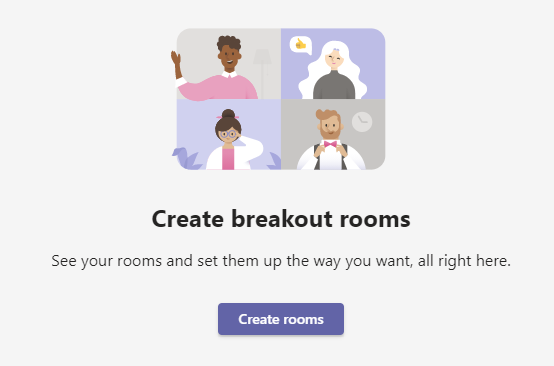
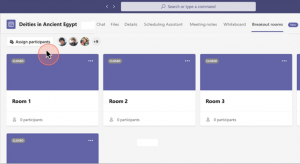
When you first go into this tab you will see an option to create rooms …


Screenshot of breakout rooms tab - create rooms


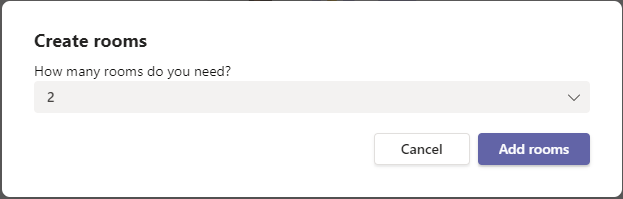
Clicking on the create rooms button then brings up a dialogue box which will allow you to set up an initial number of breakout rooms.  You can create between 1 and 50 rooms.


Screenshot of create initial rooms dialogue

Clicking on the “Add rooms” button adds the required number of rooms to the meeting.


Assigning Participants

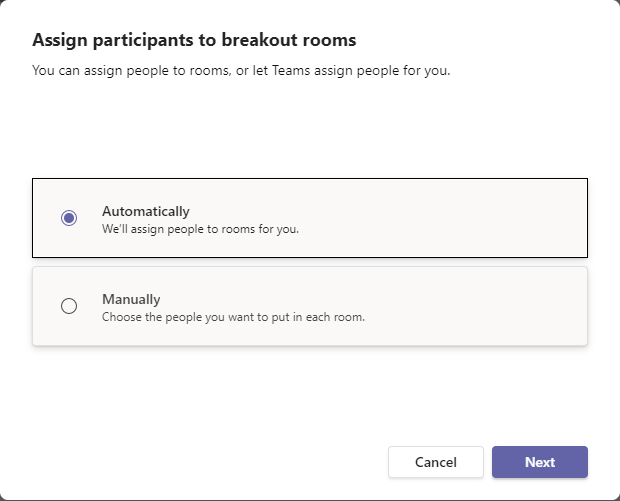
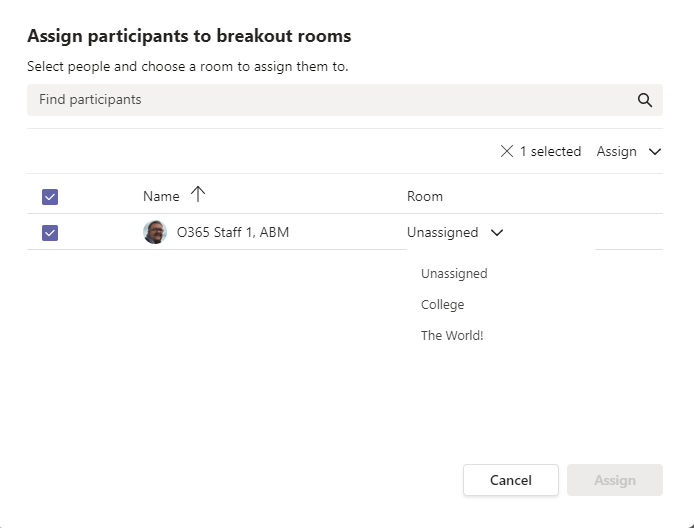
Once the rooms are created you can assign participants to a room.  Click on the “Add Participants” button on the breakout room page to set automated or manual assignment of users to rooms and then as appropriate choose participants.

Assign participants button


automatic or manual participant assignment


dialogue shoing manual assignment of particpants

Edit the Room Settings

Once the rooms are created you can edit the rooms to give each room a name, and you can edit the meeting room settings for each room (so you can set presenters for a breakout room).

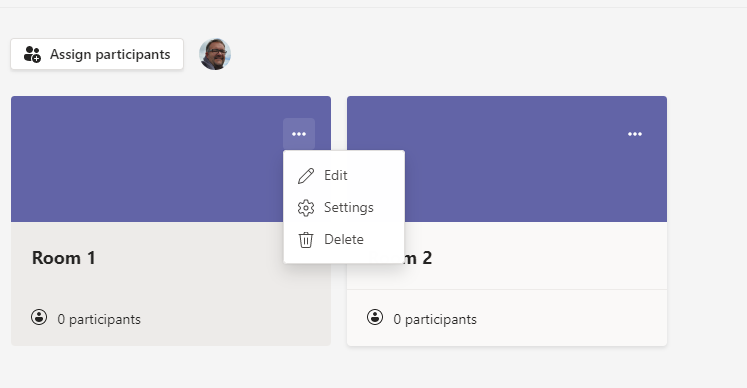
To edit the name of the room click on the elipsis on the room and choose Edit

Edit rooms settings and name


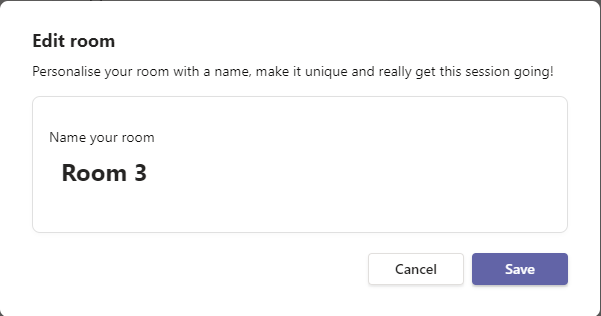
Set the name for the room


Screenshot of dialogue shoing room name change


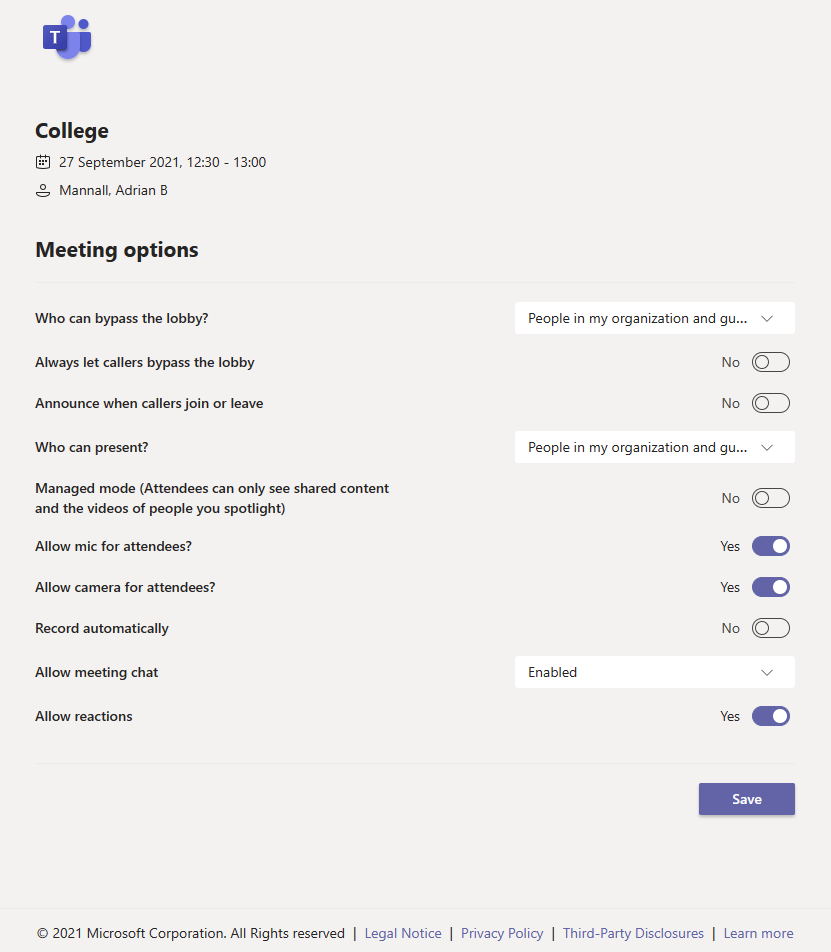
Use the settings to set specific meeting options for a breakout room


Meeting Options for a breakout room


Adjusting General Breakout Room Settings

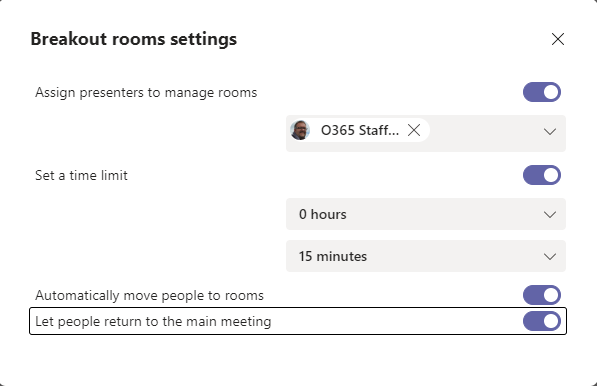
Click on the cog wheel on the top right of the Breakout Rooms tab

Editing General Breakout Rooms settings


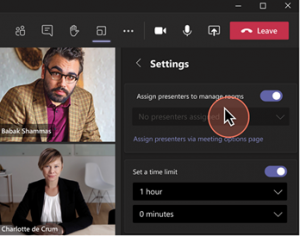
In the settings you can assign other presenteres to manage breakout rooms – wehn you do this only one person can manage the breakout rooms at any one time so you might just want to add a single co-organiser to the manage rooms function.


You can also set time limits for your breakout rooms, turn on or off the automatic movement of people to rooms when you “open” the breakout rooms from your meeting and you can enable an option that allows people to manually return to the main meeting.

Setting co-orgainisers and other general breakout room settings


Microsoft Teams – Enabling Public Preview Features

A number of features are now being made available by Microsoft in “Public Preview” to ensure that the features meet the requirements and work as expected.


Public Preview gives Teams users the opportunity to try these new features before they reach “General Availability” for all users.


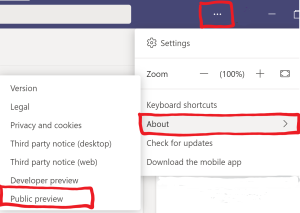
Imperial College staff can now enable access to Public Preview features in Microsoft Teams by clicking on the elipsis beside the user initials or profile photo, choosing the About section and clicking on Public Preview.


Screenshot of how to enable Public Preview mode in MS Teams

If you choose to enable Public Preview then you should be aware that some features may be removed by Microsoft if they are not functioning as expected.  Preview is an advance option and not all your colleagues will choose to use this function.


ICT’s Service Desk may ask you to turn off Public Preview when asked to assist with fault diagnosis to eliminate preview functions as the cause of issues.

Webinars in Microsoft Teams

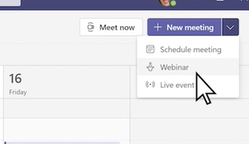
Microsoft have recently launched the long awaited webinar functionality.

This allows users with the appropriate access to create meetings with a registration page, record the details of those registering to attend and to then see who has attended the session after it finishes.  You can brand the webinar registration page with a suitable banner image and add speaker names and biographies.


ICT have set the feature to off for all users as this is a specialist function and we want to ensure that anyone using the functionality has been appropriately trained.


To join a 1hr training session during August or September book a space by clicking here.


Once you have undertaken the training you can register to have the Webinar functionality added to your account by completing this form.


Microsoft Teams meetings allow for up to 1,000 active participants and up to 10,000 attendees in total using the webinar functionality.

Teams Meetings – Presentation Modes

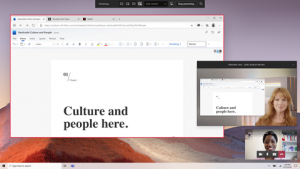
Two new modes for presenting content and video into a Microsoft Teams meeting will be introduced during late August and early September.

What is available?

  1. Side by side mode – allows the video of the presenter alongside the content being delivered – similar to the effect that has been available in a live event.
  2. Reporter mode – superimposes the content over the shoulder of the presenter’s video in a similar fashion to that of a newsreader in a broadcast.

Meeting presenters:

  • Can customize the background image before starting the presentation
  • Can easily enable or disable the video feed during the presentation from the sharing bar


Timing

These new presentation features are rolling out now and will be available to users by mid September ’21 at the latest.

Microsoft Whiteboard Enhancements – September and October 2021

During September ’21, Microsoft will be releasing a number of enhancements for the Whiteboard product.  Ultimately the goal is to provide a unified experience across all versions whether on Surface Hubs, Windows 10, Android, Teams Web or iOS.


Some features have already started to roll out for the web and Teams versions of Whiteboard with more coming during September.  The native clients (Windows 10, Surface Hub, Android and iOS) will roll out during late September and October ’21 and will be completed by the end of October ’21.


The following features are already available in the Web and Teams versions


  • Sticky note colours: 10 colourful sticky note shades to choose from.
  • Note grids – insert a grid of sticky notes in one of 12 available colours to help in workshops and ideation sessions.
  • View objects created in native apps – Objects such as lists & templates inserted on native apps can be viewed on web and Teams as well.
  • Ink pen colours: 15 new ink pen colour options with a range of thicknesses to help visualize your content and bring your text to life.
  • Highlighter colours: – 15 new highlighter colour options enable users to emphasize content on the board.
  • Ink shape recognition: – draw shapes with ink and then watch them straighten automatically.
  • Improved mouse inking: – create smoother ink lines, making your strokes easier and cleaner when drawing with a mouse or trackpad.
  • Read only mode for education accounts: – as a meeting facilitator or an educator, determine when and how students participate and collaborate by enabling or disabling their editing capabilities.

Further updates coming soon include

Modern look and feel:

  • Streamlined user experience: an unobtrusive app UI maximizes your canvas space.
  • Creation gallery: a highly discoverable, simple way of finding and using objects and features in the application.

Collaboration features:

  • Collaboration roster: see who is on the board and collaborating with you.
  • Collaborative cursors: see where other people are on the canvas and what they are editing.
  • Laser pointer: get other people’s attention as you share your best ideas.
  • Improved performance: quickly open boards, pan and zoom, create content, and collaborate in real time with numerous editors at once during large working sessions.

Interactive content features:

  • More than 30 customizable templates: get started quickly and collaborate, brainstorm, and ideate with brand new templates.
  • Stickers: provide lightweight, contextual feedback with a set of fun stickers.
  • Images: add images from your local drive to the canvas and annotate them to build visual interest on your boards.

Facilitation features:

  • Copy/paste: copy and paste content and text within the same whiteboard.
  • Object alignment: use alignment lines and object snapping to precisely organize content spatially.
  • Format background: personalize your whiteboard by changing the background colour and pattern .

Inking features:

  • Ink arrows: smoothly draw single and double-sided arrows using ink to better facilitate diagramming.
  • Ink effect pens: express yourself in a creative way using rainbow and galaxy ink.


Features coming to Native Applications

  • Ruler: for straight lines, users can now insert lines from the shapes menu or hold down shift when inking.
  • Erase entire ink strokes: for faster erasing, users can now erase the entire ink stroke instead of a portion of it.
  • Lock image: the ability to lock images and other canvas content will be available shortly after the update.
  • Insert document: the ability to insert documents from local storage along with OneDrive and SharePoint will be available shortly after update.
  • Like/unlike sticky notes: users can use stickers instead as a workaround for lightweight voting and liking. We will be releasing more enhanced voting capabilities in a future update.
  • Sorting: the ability to organize and sort lists and note grids are being rebuilt and will be included in a future update.
  • Export template to CSV and email summary: these features are being rebuilt and will be included in a future update, including different ways to export content from the board.
  • Ink grab, Ink to table and Ink to text: these features are being rebuilt and will be included in a future update.
  • Accessibility checker and alt text: these features are being rebuilt and will be included in a future update.
  • Bing image search: users can download and insert images onto the canvas with the insert image feature.
  • Easy share on Surface Hub: this feature is being rebuilt and will be included in a future update.


You can find out more about Whiteboard and the features available by clicking here.

Microsoft Teams Breakout Rooms Managers

During September Breakout Rooms Managers will become available as a feature in Microsoft Teams.


Meeting Organisers can assign the role of Breakout Rooms Manager to one or more presenters in a meeting, either before or during the meeting.  Only ONE person with the correct rights can manage breakout rooms at any one time.  If Person A organises the meeting and assigns Presenter B and Presenter C with the Breakout Rooms Manager role then either Person A (the organiser), Presenter B or Presenter C can take control and run the breakout rooms.

This feature will ONLY work in Desktop versions of Microsoft Teams.


What will the experience look like?

Organizers who will configure and manage Breakout Rooms on a Teams desktop client will have access to appoint Presenters as Breakout Room managers. Currently, only users who are named presenters from the same tenant are supported to become Breakout rooms managers.

When Breakout rooms managers join the meeting, they will see the Breakout rooms icon in toolbar.

Breakout rooms managers will have to take control to manage rooms. (Only one manager can manage rooms at the same time).

Once in control, Breakout rooms managers can perform operations to manage Breakout rooms, such as:

  • assign users to rooms
  • add/delete rooms
  • open/close rooms
  • re-assign users to rooms
  • send announcements
  • recreate rooms
  • set timer
  • adjust other Breakout rooms settings


When rooms are started, all Breakout room managers (also those not in control) can join opened Breakout Rooms by clicking on the … menu next to each room and selecting Join room.


Timing

This functionality will roll out during the second half of September 2021 and will be available by the end of September at the latest.


Enhancements to Microsoft Teams Breakout Rooms

During September 2021, Microsoft will add some much anticipated enhancements to the Breakout Rooms functionality in Microsoft Teams.

Once live, organisers will be able to configure Breakout Rooms ahead of the actual meeting using an additional tab within the meeting.  From this tab it will be possible to create and rename rooms and organise participants in advance of the meeting.   The full set of features to be enabled are as follows:


  • Bulk creating / deleting rooms
  • Adding / deleting / renaming individual rooms
  • Configuring meeting options for each room
  • Adjusting settings for breakout rooms session (timer, selecting breakout rooms managers and more)
  • Pre-assigning participants via both manual and automatic assignment options


The “Breakout Room Manager” is a new role which the organiser will be able to assign.  This user will then be able to run breakout rooms even if the organiser of the meeting is not present.  The Breakout Room Manager will also be able to control and update breakout rooms, start and stop them and set features such as the room timer, and room meeting options.


The new features are expected to be live by the end of September but may be available earlier in the month depending on delivery to the Imperial Office 365 tenant.

NOTE this functionality will only be available in the Teams Desktop client initially.


For more information on Breakout Rooms and settings (this document will be further updated when Microsoft release the new features) see this link.

Microsoft 365 Training

Flipped open silhouette of a head with Office 365 app icons


New Microsoft 365 Training Dates have been scheduled for August, September and October 2021.


Getting Started with Office 365

Scheduled to run on 23rd August, 29th September and 21st October at 10.00.

This covers the basics of Office 365, including Logging In, OneDrive for Business, how to upload and share files and how to move away from using your H: drive, along with basic file co-authoring.

Book your place here.


Collaborating with Microsoft Teams

Using Microsoft Teams?

Want to know more about how to make your team more collaborative and keep everyone in your team “in the know”?

Why not join one of the sessions running at 14.00 hrs on 23rd August, 29th September or 21st October to find out more about working together.

Book your place here.


Microsoft OneNote – “Imperial as One presents OneNote Training with Adrian”

Open sessions for training on OneNote hosted by Imperial as One.

Sessions running at 10.00 hrs on 24th August 2021 and 23rd September 2021

Book a place here.


NEW – Power Automate in Microsoft 365 – NEW

Do you do repetitive tasks with information?

Would you like to automate what you do and ensure that the data is processed in the same way every time?

Do you collect information using Microsoft Forms and then need to do something more with the information?

Join this 2 hour session on 20th October where we will begin to explore Power Automate and how you can use it for automation of data processing … We’ll look at taking data captured by a form and adding it to a table in Excel, and a list in SharePoint.  We’ll also look at functions such as automating posts into MS Teams, and using “Approvals” in workflows.

Book your place here.  Places are limited to 25 initially – subject to initial feedback we hope to run this course again with a larger number of participants later in 2021.